 Town
TownGetting to know Town
Chapter 1 overview: Set up your assistant, review what it learns about you, and understand how shared context across Town surfaces helps it become more useful over time.
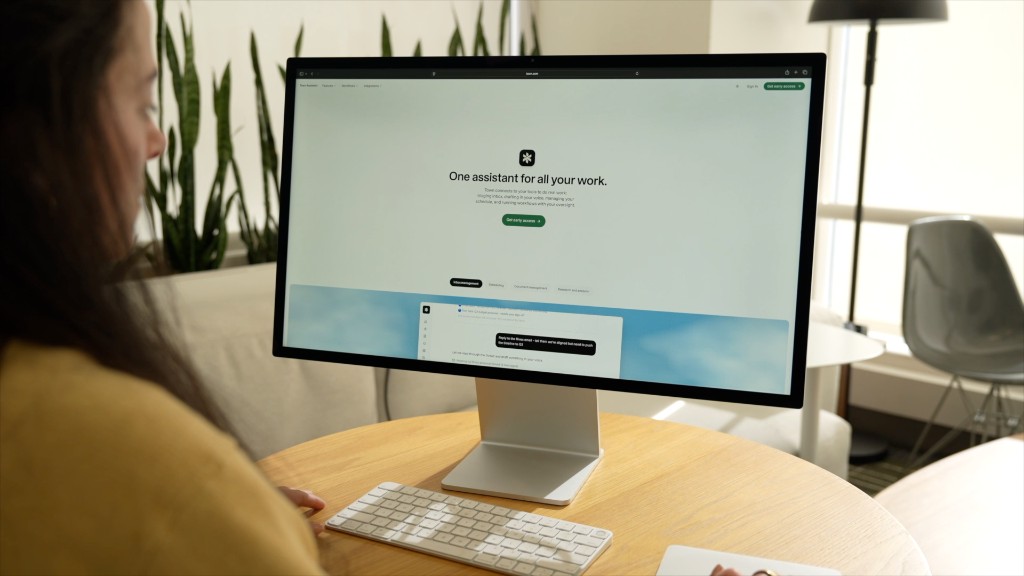
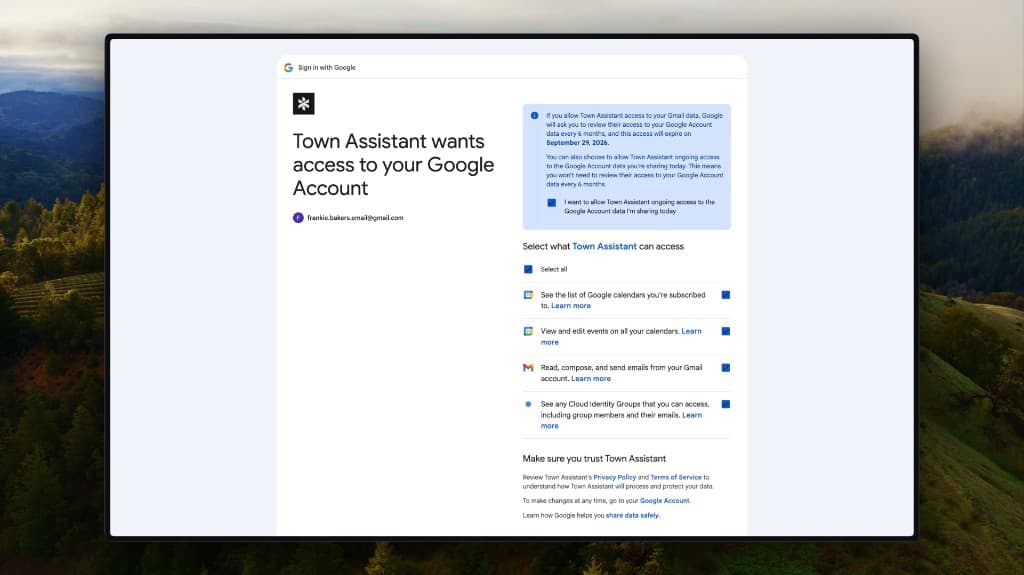
When you sign up for Town, the first thing you do is connect your Google account. Gmail, Calendar, and Drive all connect in a single step.
The second thing you do is give your assistant a name.
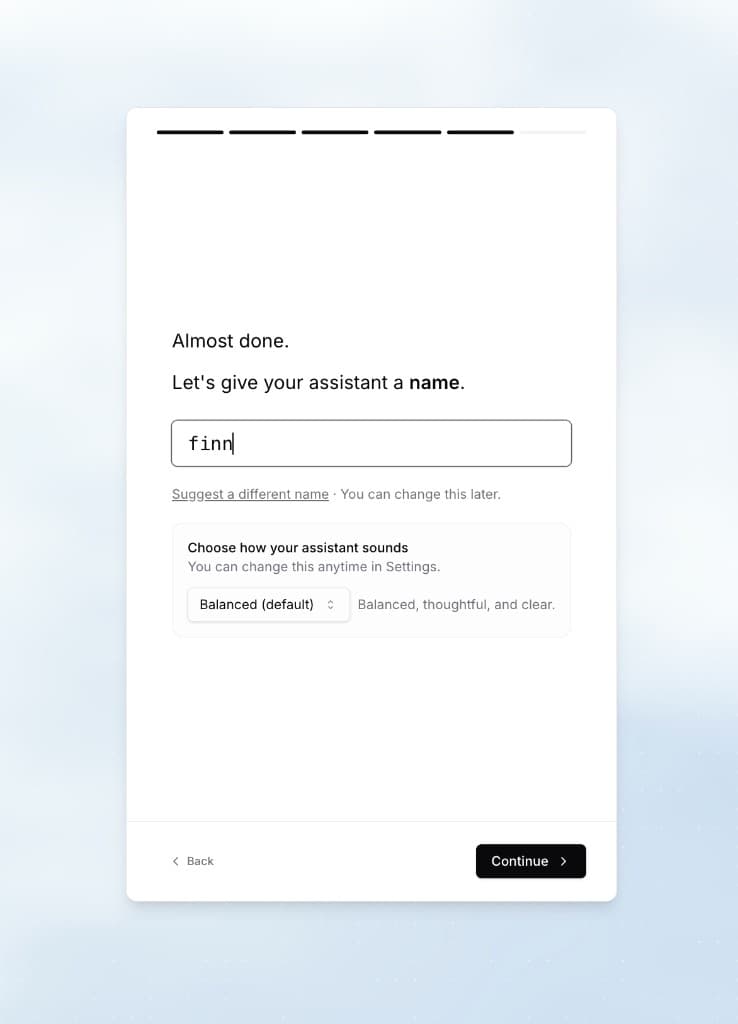
This might seem like a small detail, but it matters. The name you pick becomes an email address - alex@town.com, say - and it becomes how you refer to your assistant when you talk about it with other people. “I had Alex handle that.” “Send it to Alex.” It is a name, not a product.
Your assistant starts learning
Once you are connected, your assistant gets to work understanding who you are. It reads your recent emails and calendar - not to take action on anything, but to build a picture of your work life. Who do you collaborate with? What is your role? How do you write? What fills your days?
Your data stays private - you can read more about how Town handles security and privacy at town.com/features/security . The only purpose of this step is to give your assistant the context it needs to help you well.
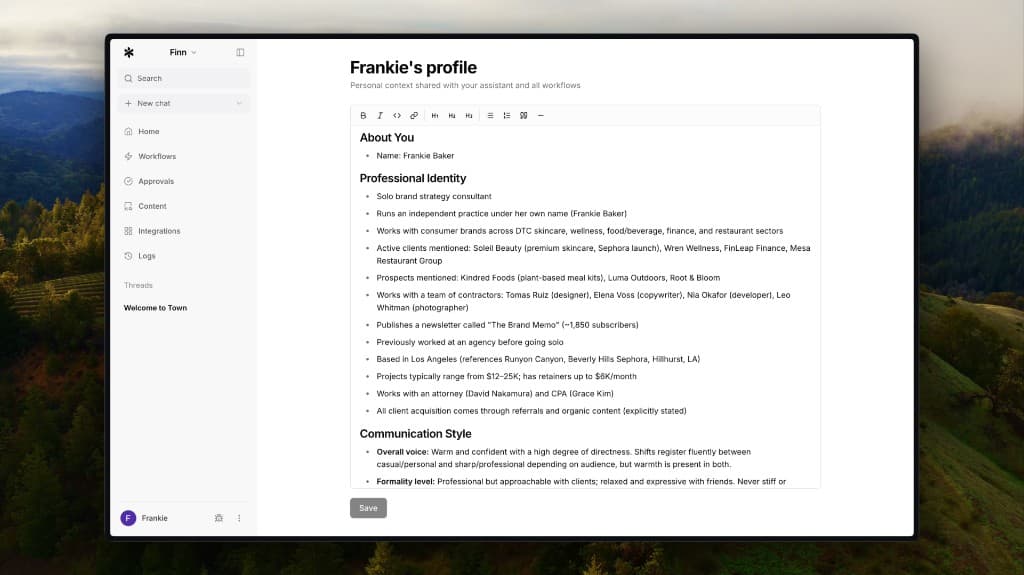
Within a few minutes, it shows you what it learned: “Here is what I know about you so far.” Your name, your title, the people you work with most, how you tend to communicate, what seems to matter to you.
You can edit any of it. Correct what is wrong. Add what is missing. This profile is the foundation for everything that follows - it is what allows your assistant to draft emails that sound like you, surface the things you would actually care about, and handle tasks the way you would want them handled.
The better this profile is, the better everything else works. An assistant that knows you are a sales lead who writes casual emails and cares about pipeline updates will behave very differently from one that knows you are an engineer who prefers bullet points and cares about deploy schedules. Same assistant, different context, completely different output.
One assistant, everywhere you work
Most tools live in one place. Town does not. Your assistant meets you wherever you already are - and it is the same assistant every time, with the same memory, the same context, and the same conversation history.
This is worth understanding clearly, because it changes how you think about using it.
The web app (town.com) is the full workspace - chat, documents, routines, approvals, history. It is home base.
But your assistant also has its own email address - the @town.com address you chose during setup. You can email it directly from any device. Forward a thread and say “draft a reply.” Email it from your phone at 11pm and say “remind me to follow up on this tomorrow.” It handles the task and replies when it is done.
In Slack, @mention your assistant in any channel. It responds in-thread with full context from your email, calendar, and connected tools.
On WhatsApp (town.com/features/whatsapp ), chat with it like a contact - text, images, voice notes. On iOS (town.com/features/ios ), record meetings and leave voice memos.
Here is the key: these are not separate apps with separate memories. Every surface connects to the same assistant. A conversation you start in the web app continues over email. A preference you set over WhatsApp applies everywhere. A routine you approve from Slack shows up in your session history on the web.
Your assistant knows you everywhere, not just in one app. And every interaction - no matter where it happens - makes it smarter about how you work.
Personalized suggestions
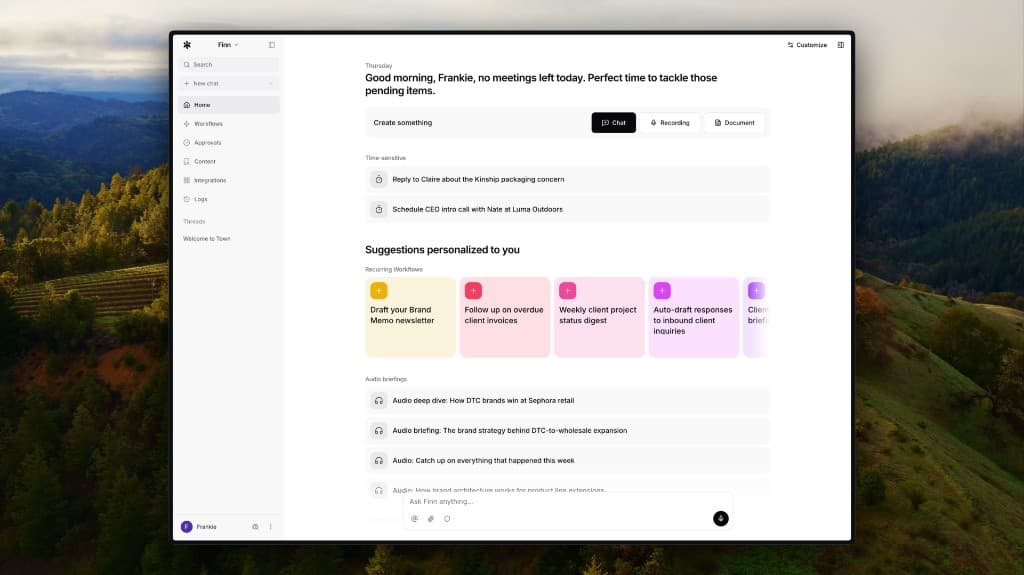
Here is where it gets interesting. Based on what your assistant learned about you, it surfaces personalized suggestions - things it can help with right now.
These come in three flavors:
- Task suggestions are things your assistant can do for you immediately. “You have 147 unread emails - want me to triage them?” or “You have a meeting with Sarah in an hour - want a prep doc?” These are based on what is actually in your inbox and on your calendar right now.
- Routine suggestions are automations your assistant thinks would be useful based on your work patterns. If it sees you get a lot of scheduling requests, it might suggest an auto-scheduling routine. If it sees daily standup threads in Slack, it might suggest a digest routine. These are starting points - you can customize them or build your own from scratch. (Chapter 3 covers how routines work in detail.)
- Integration suggestions are tools your assistant thinks would make it more helpful. If it sees you reference Slack conversations in emails, it might suggest connecting Slack so it can pull that context directly.
Think of suggestions as your assistant raising its hand and saying “Based on what I know about your work, here is where I think I can help.” You can act on them, dismiss them, or come back to them later. And as your assistant learns more about you, the suggestions get sharper.
It is a conversation, not a command line
Your assistant is not a search bar. It is a conversation - back and forth, building on what came before.
This matters because the way you talk to it changes what you get back.
Say you need to reschedule a meeting. You could say:
Reschedule my meeting.
Your assistant does not know which meeting, with whom, or when you would prefer. It has to guess.
Now compare:
Reschedule my 2pm with Sarah to Thursday morning. Something before 11 works. Let her know I had a conflict come up.
Same task. But now your assistant knows the meeting, the constraint, and the tone. It can handle the whole thing - check your calendar, find a time, and draft a message to Sarah that sounds like you wrote it. Because it knows your voice from your profile, the message will not feel generic. It will feel like something you would actually send.
This is the core skill: giving your assistant enough context to act confidently on your behalf. And the more your assistant already knows about you, the less context you need to provide each time.
The delegation mental model
Here is an analogy that will help you think about all of this.
Imagine you just hired a new team member. They are smart, fast, and eager to help - but they do not know your preferences yet. They do not know which emails matter, how you like your calendar organized, or who your key contacts are.
On day one, you would give them small, well-defined tasks. “Send this email.” “Find me that document.” You would check their work.
Over time, you would give them more responsibility. “Handle my scheduling.” “Triage my inbox every morning.” You would trust them with bigger things because they had proven they could handle the small ones.
Your Town assistant follows this arc. Start small. Build trust. Expand scope.
The difference is that Town gives you a head start. Because your assistant already read your emails and built a profile, it is not starting from zero. It is more like a new hire who did their homework before their first day - and who keeps getting better every day after.
It gets sharper over time
Your assistant is not static. It gets better the more you use it - and not just because you are getting better at talking to it. Three things are actively updating behind the scenes as you work together.
Your profile gets refined. The snapshot your assistant built on day one is just a starting point. As you correct drafts, share preferences, and interact over time, it fills in a richer, more accurate picture of who you are and how you work.
Your contacts get deeper. Your assistant does not just know names and email addresses - it builds context about your relationships. Who you meet with regularly, what you have discussed recently, what matters in each relationship. The more you interact, the more it understands the people in your world.
Your memory grows. Every preference you share - “Always CC my manager on budget updates,” “I do not take meetings before 10 AM” - gets stored permanently. These memories stack up over time and apply across everything: conversations, drafts, routines, briefings. You never have to repeat yourself.
This is happening continuously, not just when you explicitly teach it something. When you correct a draft - “That is too formal, I would say it more like this” - your assistant learns. When you reject a routine action and explain why, it adjusts. Every interaction is a data point.
Over time, the arc looks like this: stranger, then colleague, then trusted partner. The assistant that felt a little generic on day one starts anticipating what you need before you ask.
Try it
If you have already signed up, go to the chat right now and say:
What is on my calendar today? Anything I should prep for?
Watch what comes back. Your assistant does not just list your events - it pulls context about who you are meeting, what you have discussed with them recently, and what might be worth reviewing.
That is your profile at work.
What’s next
You now understand how your assistant gets to know you and why that foundation matters. The more it knows, the better everything works - drafts, briefings, suggestions, routines.
But right now, your assistant can only see your email, calendar, and files. In the next chapter, we will talk about how connecting more tools gives it a fuller picture of your work - and why that changes everything.